

English
Purchasing and expenses
The Pembelian (Purchasing) screen handles supplier bills, their approval and payment, and returns. Biaya (Expenses) records spending paid straight from cash and bank.
Recording a supplier bill
- Open Pembelian, Tagihan (Bills), then click + Baru, Tagihan pembelian baru (New purchase bill).
- Choose the Pemasok (Supplier) (or Tambah pemasok, Add supplier) and fill in No. faktur pemasok (Supplier invoice no.) from the bill you received. If that number has been recorded before, Finara warns you so it is not recorded twice.
- Fill in Tanggal, Termin, and Jatuh tempo.
- Fill in the bill lines. Each line can choose its own account; a line that does not uses the account of the Kategori (Category): Beban operasional (Operating expense), Gaji (Salaries), Bahan baku (Raw materials), Pajak (Tax), Lainnya (Other), or Persediaan (Inventory).
- If the supplier gave a tax invoice, fill in No. faktur pajak (opsional) and Tanggal faktur pajak so the input VAT counts in Tax.
- Choose Simpan draf (Save draft), or Simpan & ajukan (Save & submit) to send it to an approver.
Attach a copy or photo of the bill under Lampiran (Attachments) on the bill's page.
Bill statuses
| Status | Meaning |
|---|---|
| Draf | Not submitted. Can be edited and deleted |
| Menunggu persetujuan (Awaiting approval) | Submitted, not yet decided |
| Disetujui (Approved) | Booked as a payable, ready to pay |
| Dibayar sebagian (Partly paid) | Some payment, a balance remains |
| Jatuh tempo (Overdue) | Past due and not fully paid |
| Lunas (Paid) | Paid in full |
| Ditolak (Rejected) | Not approved |
| Dibatalkan (Cancelled) | Cancelled with a reversing journal |
Approval
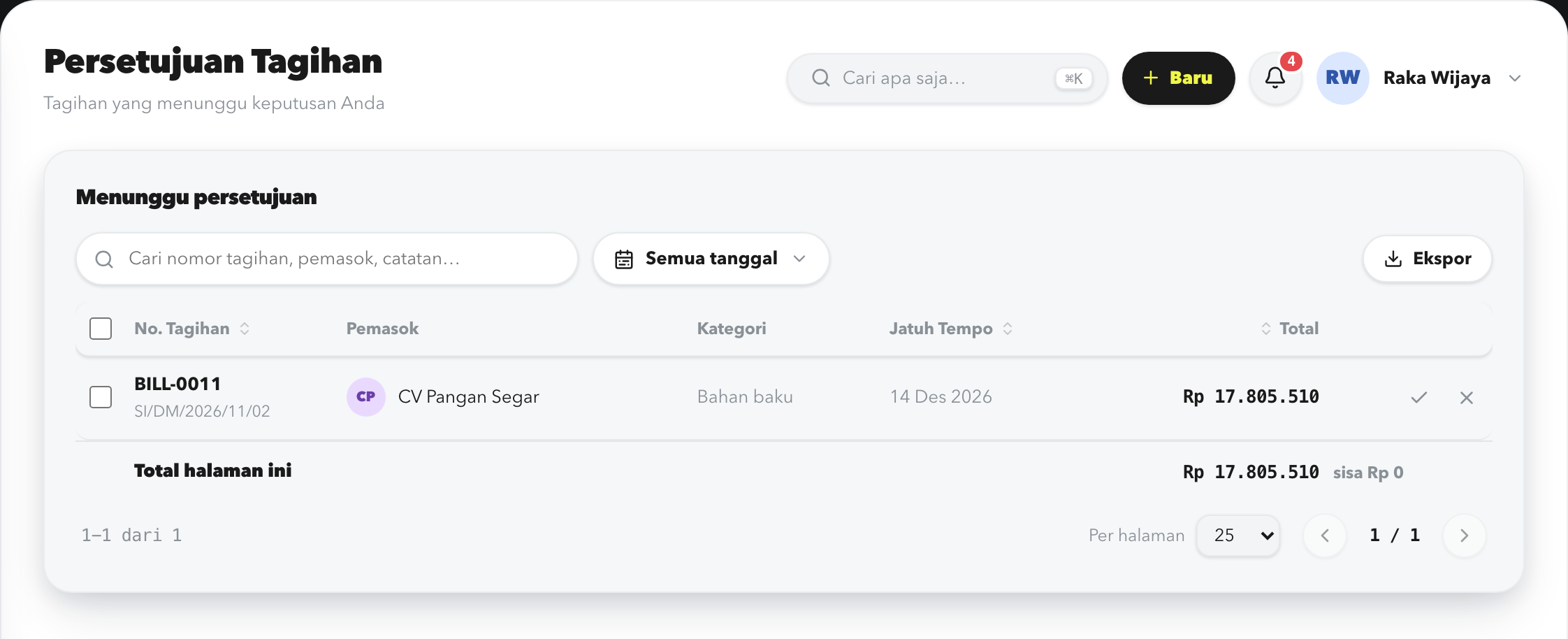
A bill is booked as a payable only after it is approved. The approver opens Pembelian, Persetujuan (Approvals), chooses the bill, then Setujui (Approve) or Tolak (Reject), with a note if needed (the same buttons are on the bill's page). Whoever created the bill uses Ajukan persetujuan (Submit for approval) on that page if it has not been submitted yet. The bell at the top right of Finara shows how many bills await a decision.
| Rule | Meaning |
|---|---|
| Batas persetujuan tagihan (Bill approval limit) | In Pengaturan. A bill below this value is approved automatically when submitted, with the note "Disetujui otomatis" (Approved automatically). Empty or zero means every bill needs an approver |
| No self-approval | An approver cannot approve a bill they created themselves when there is another approver in the company |
| Date | A bill cannot be approved if its date falls in a locked period |
Paying bills
Open Pembelian, Pembayaran (Payments), then + Baru, Bayar tagihan pemasok (Pay supplier bills) (or the Bayar tagihan button on an approved bill's page).
- Choose the paying account, the date, and the supplier.
- Tick the bills being settled; the amounts fill in and can be changed. One payment can settle several bills from the same supplier.
- Save. The bill becomes Dibayar sebagian or Lunas.
Two columns in each bill row are asked about often:
- PPh dipotong (Tax withheld). If you withhold income tax from the supplier (for example PPh 23), fill in this column: that amount is not paid to the supplier but remitted to the tax office, and Finara creates the withholding slip automatically, linked to the bill.
- Potongan (Discount). An early-payment discount from the supplier: it helps settle the bill without any money going out.
A payment beyond the bills becomes credit with the supplier that can be used on the next bill.
Debit notes
For a return to a supplier or a price discount after a bill is booked, create a debit note from the bill (Buat nota debit, Create debit note). Once issued, its value is used with Pakai ke tagihan (Apply to bill), or the money is claimed back with Terima pengembalian dana (Receive refund). Its statuses are Draf, Ada sisa nilai (Value remaining), Terpakai habis (Fully used), and Dibatalkan.
The next debit note on the same bill starts from the goods the earlier debit notes did not send back. When the whole bill is already covered, drafts included, Finara names the note that covers it.
Expenses
For small spending paid on the spot (fuel, meals, parking), open Biaya then Catat biaya (Record expense) (or + Baru, Catat biaya):
- Choose Dibayar dari rekening (Paid from account) and Tanggal.
- Fill in Dibayar kepada (Paid to) if needed, No. nota / referensi (Receipt no. / reference), and the expense lines with their accounts. One expense can span several accounts.
- Attach the Foto atau berkas nota (Photo or file of the receipt), image or PDF.
- Choose Simpan biaya (Save expense): the expense is booked at once and the account's balance goes down.
Not paid yet? Choose Bayar nanti (Pay later): the expense is saved as a supplier bill (submitted, following the approval rule) to be paid later under Purchasing, Payments. If you withhold tax, the PPh yang Anda potong column works out the money that actually leaves the account.
Recurring bills
For regular bills from a supplier, open Pembelian, Tagihan Berulang (Recurring Bills) and create a schedule like recurring invoices. The difference is the switch, named Ajukan otomatis (Submit automatically): the bill produced is submitted at once and follows the company's approval rule (below the approval limit it is approved straight away; above it, an approver still decides). When off, the bill is created as a draft.
Goods that are fixed assets
A bill line booked to a fixed-asset account shows a Daftarkan sebagai aset (Register as an asset) button on the approved bill's page, so the item is depreciated each month. See Fixed assets.
On the bill page
Like an invoice, each bill has Lampiran, Riwayat, and the journal it made. An approved bill cannot be deleted: cancel it, and Finara creates a reversing journal.