

English
Sales
The Penjualan (Sales) screen handles everything about billing customers: invoices, quotes, receipts, credit notes, and recurring invoices.
Quotes are optional: an invoice can be made directly. A credit note is only needed when something has to be corrected after an invoice is issued.
Creating an invoice
- Open Penjualan, Faktur (Invoices), then click + Baru (New), Faktur penjualan baru (New sales invoice) (or press Ctrl+K and type "faktur").
- Choose the Pelanggan (Customer). Not there yet? Choose Tambah pelanggan (Add customer) in the same box.
- Fill in Tanggal (Date) and Termin (Terms). The Jatuh tempo (Due date) fills itself from the terms, and you can still change it. No. referensi / PO is for the customer's order number.
- Fill in the lines: description, quantity, price, discount, revenue account, and tax. Typing in the description offers the Produk & Jasa catalogue: picking one fills in its unit, price, account, and tax.
- Choose Simpan draf (Save draft) or Simpan & terbitkan (Save & issue).
Simpan draf saves the invoice without booking it: a draft can still be edited and deleted, and does not yet affect reports. Simpan & terbitkan books the invoice (receivable, revenue, and tax) and marks it Belum dibayar (Unpaid).
Making lines easy to fill
- Prices and amounts can be typed short:
250rb,1,5jt. Line discounts and the Diskon dokumen (Document discount) can be a percentage or an amount:10%or50rb. - Copy cells from Excel or Google Sheets and paste: each copied row becomes one invoice line.
- The Kolom (Columns) menu shows extra columns (account, withholding tax, project, department, branch) and is remembered per device. On the project, department, and branch columns, the small arrow in the column head sets every row to the first row's value.
- Ctrl+S saves a draft and Ctrl+Enter runs the main button.
The full list of shortcuts is in Working faster.
Invoice statuses
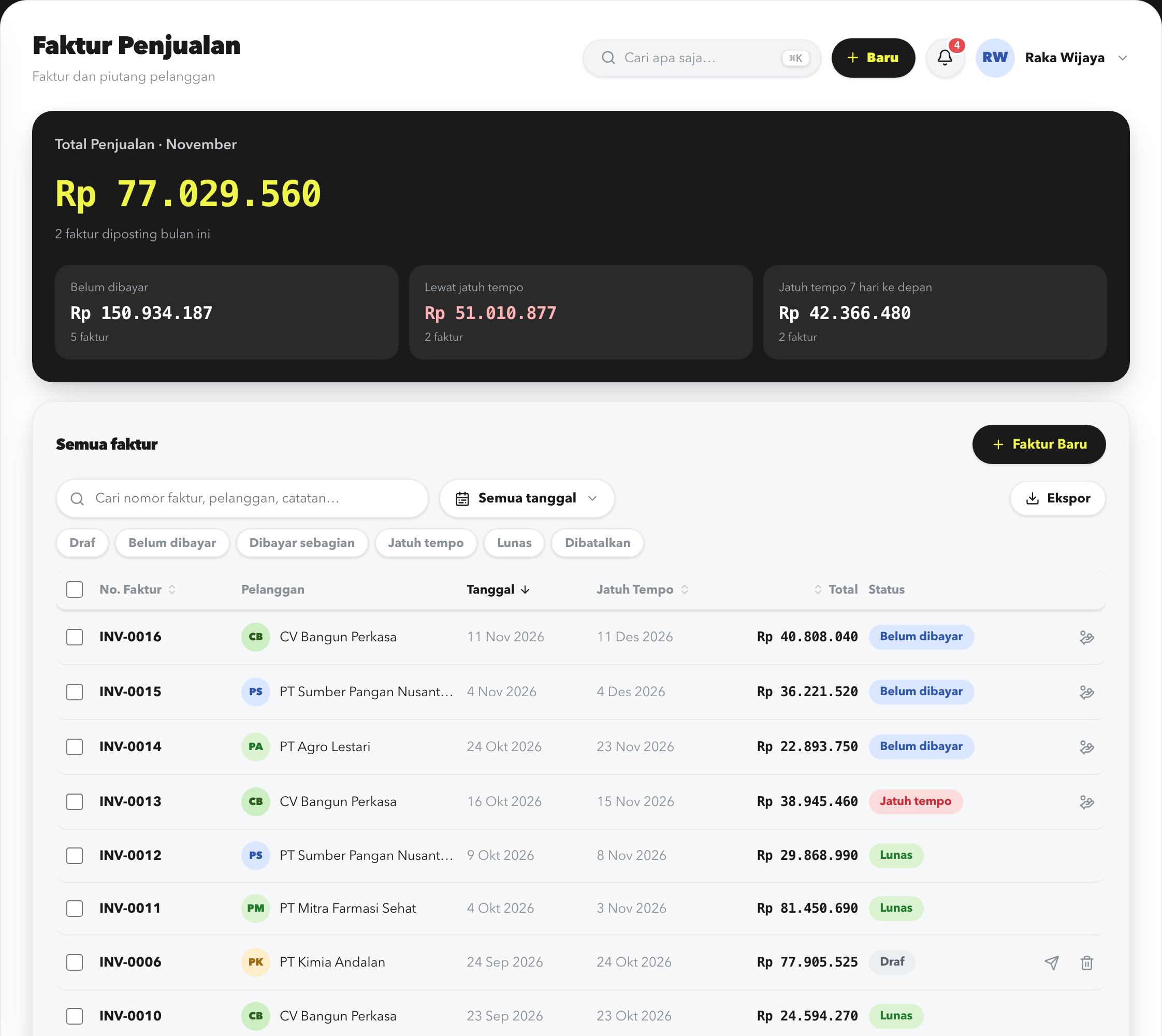
| Status | Meaning |
|---|---|
| Draf (Draft) | Not booked yet. Can be edited and deleted |
| Belum dibayar (Unpaid) | Issued, no payment yet |
| Dibayar sebagian (Partly paid) | Some payment, a balance remains |
| Jatuh tempo (Overdue) | Past the due date and not fully paid |
| Lunas (Paid) | Paid in full |
| Dibatalkan (Cancelled) | Cancelled with a reversing journal |
Sending an invoice and the customer's online page
On an issued invoice:
- Kirim (Send) emails one or more addresses (separate with commas), with a subject and message you can edit. The invoice PDF is attached, and the email carries a button to the online invoice page.
- PDF opens or downloads the printed invoice, complete with letterhead, logo, signature, and payment accounts if you set them.
- Aksi lain (More actions), Bagikan tautan (Share link), Buat tautan (Create link) makes a link you can send by WhatsApp or any message. Salin (Copy) and WhatsApp are there. Tautan baru (New link) replaces the old link, and Cabut (Revoke) switches it off.
The customer opens the link without signing in: they can view the invoice, download its PDF, and see where to transfer. The Cara membayar (How to pay) block names the accounts you chose in Settings, the invoice number as the transfer reference, and the remaining balance, not the total, when the invoice is partly paid. A paid or cancelled invoice does not show it.
Finara does not take online payments
Finara never holds customers' money. The online page only shows where to transfer; you record the payment yourself once the money arrives. Anyone holding the link can see the document, so revoke the link when it is no longer needed.
Due-date reminders
In Pengaturan, switch on Kirim pengingat jatuh tempo ke pelanggan. Finara sends an automatic email 3 days before the due date, on the day, and 7 days after, only for unpaid invoices and customers who have an email address.
Recording a payment
On an issued invoice, click Catat pembayaran (Record payment). The Penerimaan (Receipt) form opens with the customer and invoice already filled in:
- Choose Diterima di rekening (Received in account) and Tanggal.
- Under Faktur yang dilunasi (Invoices being settled), tick the invoice and enter the amount settled. Less than the balance means partly paid; the full balance means Lunas.
- Diterima di bank (Received at the bank) is the money that actually arrived. Fill in Biaya bank (Bank fee) if the bank deducted one.
- Simpan penerimaan (Save receipt).
A customer paying several invoices at once is recorded once under Penjualan, Penerimaan: tick all the invoices settled in one form.
- Withholding tax deducted by the customer. If the customer withheld income tax from the payment, fill in PPh dipotong (Tax withheld), Jenis PPh (Tax type), and No. bukti potong (Withholding slip no.) on that invoice's row. The amount is booked as tax already paid in advance, not as money received in the account.
- Discount. A small difference you let go can be recorded in the Diskon column.
- Overpayment. Money received beyond the invoices becomes customer credit. On that customer's next invoice, click Pakai (Apply) on the credit to reduce the balance.
Correcting an invoice
An issued invoice is not edited. There are two ways:
| Situation | What to do |
|---|---|
| The whole invoice is wrong | Aksi lain, Batalkan faktur (Cancel invoice), with a reason. Finara creates a reversing journal. An invoice that has payments cannot be cancelled until its payments are cancelled |
| Some goods came back, or there is a price discount | Aksi lain, Buat nota kredit (Create credit note) |
After cancelling, create a new invoice if needed. Duplikat (Duplicate) copies an invoice into a new draft.
Credit notes
Buat nota kredit makes a draft from the invoice; adjust the lines to what came back, fill in the Alasan (Reason), then Terbitkan (Issue). Two choices on the draft matter:
- Langsung kurangi sisa faktur asal saat diterbitkan (Reduce the original invoice's balance as soon as it is issued).
- Hanya potongan harga: barangnya tidak kembali ke gudang (Price discount only: the goods do not return to the warehouse).
An issued credit note has a remaining credit. Use it with Pakai ke faktur (Apply to invoice, reducing what the customer owes) or Kembalikan dana (Refund, returning the money from an account). Its statuses are Draf, Ada sisa kredit (Credit remaining), Terpakai habis (Fully used), and Dibatalkan. A credit note whose credit has been partly refunded cannot be cancelled.
The next credit note on the same invoice starts from what is left: the goods the earlier credit notes did not bring back, with any discount in Rupiah shared out to that part. When the whole invoice is already covered by credit notes, drafts not yet issued included, Finara names the note that covers it: open it to change it, or delete the draft. After a price-only note the goods have not come back, so write the next note from + Baru, Nota kredit baru (New credit note): choose the Faktur asal (opsional) (Original invoice, optional), then fill in its lines yourself.
Quotes
Penjualan, Penawaran (Quotes) holds price quotes that can be turned into invoices. The form is the same as an invoice's, with Berlaku sampai (Valid until) in place of the due date (filled from Masa berlaku penawaran in Settings).
| Status | Meaning |
|---|---|
| Draf | Not sent |
| Terkirim (Sent) | Sent to the customer |
| Diterima (Accepted) | The customer agreed |
| Ditolak (Declined) | The customer declined |
| Kedaluwarsa (Expired) | Past the valid-until date |
| Jadi faktur (Became an invoice) | Already turned into an invoice |
On a quote, Jadikan faktur (Make invoice) creates a draft invoice with the same content, and the quote points to its invoice. The Aksi lain menu has Tandai terkirim, Tandai diterima, Tandai ditolak (Mark as sent, accepted, declined), Bagikan tautan, and Duplikat. A quote can be sent by email and link like an invoice.
Down payments
For a customer who pays in advance, create an invoice with Jenis (Type), Faktur uang muka (Down-payment invoice). The down payment is booked as customer down payment together with its VAT. When billing the balance, the final invoice shows Uang muka dipotong (Down payment deducted): choose the customer's unused down payment and the amount to deduct.
Recurring invoices
For regular billing (rent, subscriptions), open Penjualan, Faktur Berulang (Recurring Invoices) and create a schedule:
| Field | Purpose |
|---|---|
| Nama jadwal (Schedule name), Pelanggan | For example "Monthly office rent" |
| Setiap (Every) | The interval: week, month, quarter, or year |
| Mulai (Start), Selesai (opsional) (End, optional), Berhenti setelah (kali, opsional) (Stop after N times, optional) | The schedule's limits |
| Termin or Jatuh tempo (hari) | The due date of each invoice produced |
| Terbitkan otomatis (Issue automatically) | The invoice is issued straight away; when off, the invoice is created as a draft for you to check |
| Kirim email otomatis (Send email automatically) | An issued invoice is sent to the customer at once (needs Issue automatically) |
Schedule statuses: Berjalan (Running), Dijeda (Paused), and Selesai (Ended). An invoice is issued once per schedule per date.
On the invoice page
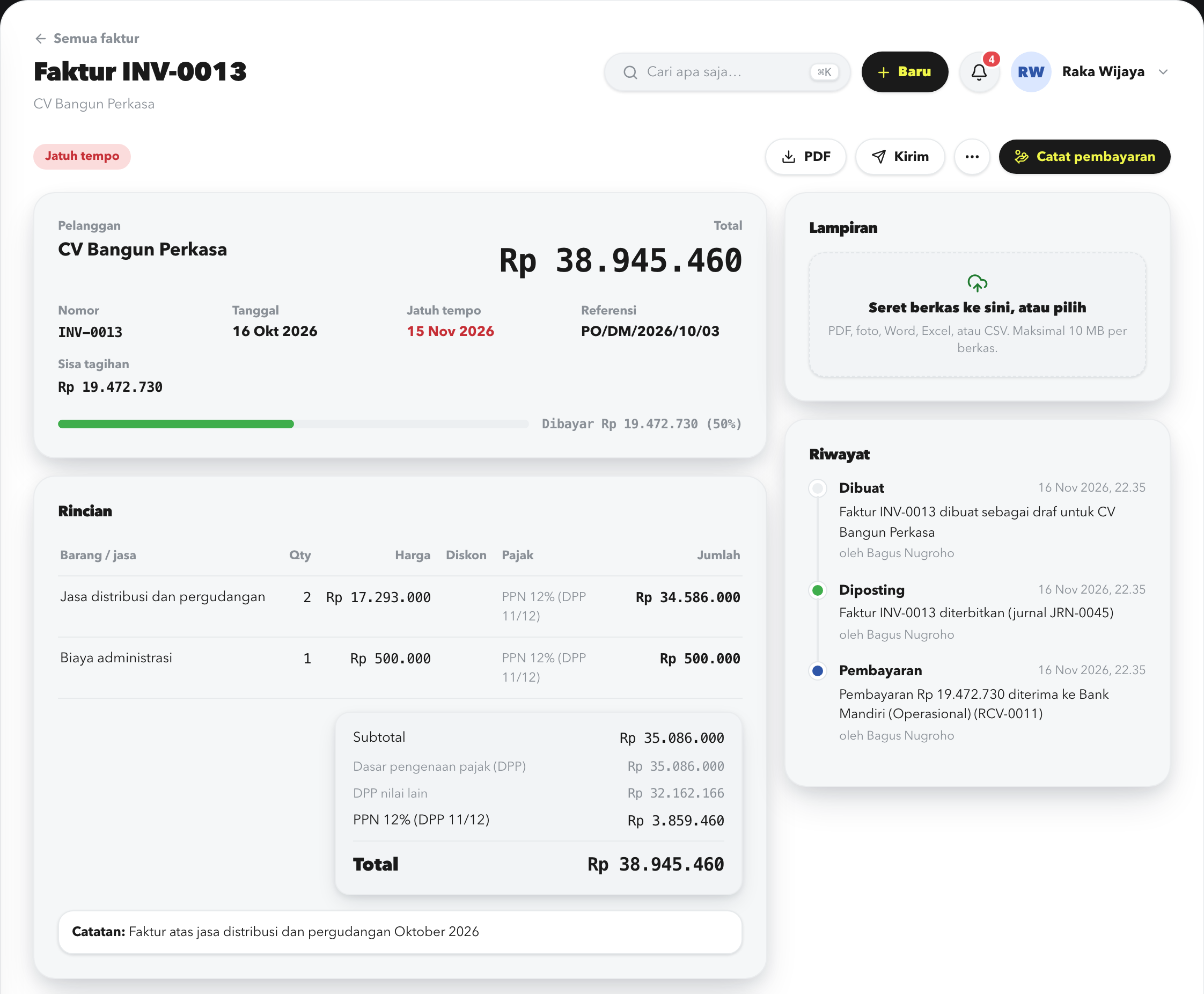
Every invoice has the sections Rincian (Details), Pelunasan (Settlement), Jurnal (Journal, the journal it made), Lampiran (Attachments, supporting files you upload), and Riwayat (History, who did what and when).