

English
Onboarding & Offboarding
Task checklists for people joining or leaving. Three tabs with different access.
| Tab | For whom |
|---|---|
| My Checklist | Every employee — your own checklist |
| Active | HR — every checklist in flight |
| Templates | HR — the task list catalogue |
My Checklist
Your onboarding or offboarding tasks. Tick to mark complete; untick to reopen.
- Tasks marked optional may be skipped.
- Required tasks can only be skipped by HR, not by you.
- Each task's due date is shown beneath it.
Your progress also appears in a dashboard widget.
The Active tab
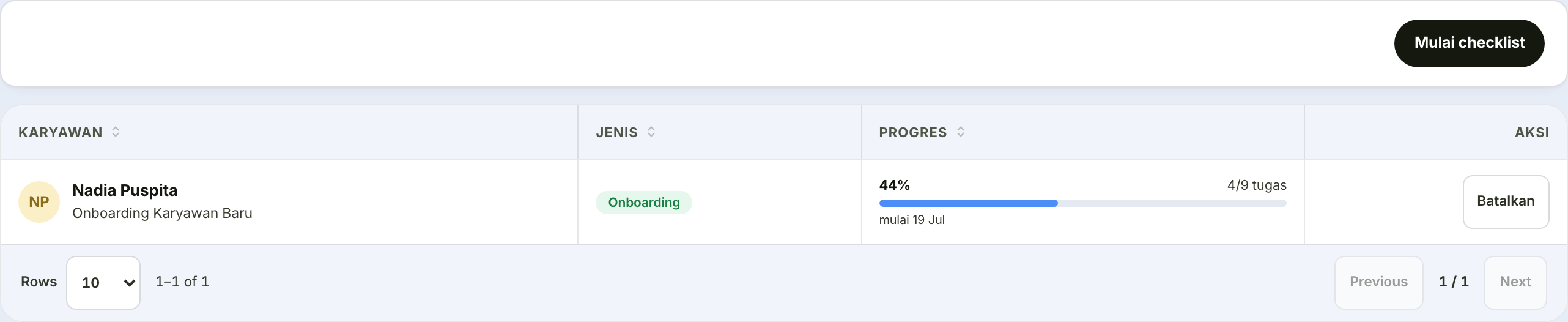
A card per running checklist, showing the employee's name, the template, the percentage complete, and the start date.
Start a checklist asks for:
| Field | What it holds |
|---|---|
| Type | Onboarding for new joiners, or offboarding for leavers |
| Template | The task list to use — only active templates appear |
| Employee | For whom |
| Start date | The basis for each task's due date |
The Cancel button stops a checklist started in error.
The Templates tab
| Field | What it holds |
|---|---|
| Template name | For instance "Office Staff Onboarding" |
| Type | Onboarding or offboarding |
| Task list | Each task carries a title, description, category, required/optional marker, and a relative due date |
Relative due dates can be negative
A value of -3 means that task must be finished three days before the employee starts — preparing a laptop and email account, for instance.
That is what makes an onboarding checklist useful: some of the work genuinely has to be done before the person arrives.
Deactivated templates no longer appear when starting new checklists, but checklists already running stay intact.