

English
Full guide: Sign-up to offboarding
A complete end-to-end walkthrough of the full person and company journey across Kreativlo and Kreativstaff: from registering a new account (no email verification required), Portal workspace onboarding & invitations, initial HR setup, digital employee onboarding, and active employment, right through to complete offboarding, portal access deactivation, and rehiring.
Phase 1: Account registration & Portal onboarding
Every person in Kreativlo starts with one personal account shared across every application.
Register without email verification. New users create an account via Create account at
sso.kreativlo.com, Daftar on the Kreatime mobile app, or straight from an emailed invitation link. Accounts activate immediately without clicking a confirmation email. Step-by-step registration guide →Founders create a company workspace. Choose Create an organization → Start free trial to start a 14-day trial (One company or a Company group of up to 3 companies). Enter your company street address and contact details under Company Owner Console → Company information so official letters and payslips display the proper letterhead.
Admins invite employees from the Portal. Open Company Owner Console → Members → + Invite member:
- Enter the employee's email address (check remaining seats first).
- (Optional, directly prefilled into Kreativstaff) Pick their Department / Unit, Job title, and Work location, or mark them as an Outsourced worker with their vendor selected.
- Under Application access, assign their Kreativstaff role: Employee for regular staff, HR Manager for supervisors, or HR Admin for HR.
Employees accept the emailed invitation link (valid for 7 days). Open the invitation email (check Spam if missing), click the link, sign in (or create an account using the same email — immediately active without extra email verification), and click Accept invitation.
Why can't a new member clock in right after accepting an invitation?
Accepting the invitation makes them a Portal company member only. They appear on attendance rosters and can clock in once HR registers their employee placement inside Kreativstaff (Phase 3 below).
Phase 2: Initial Kreativstaff foundation (once per company)
Before adding your first employee, complete these setup essentials inside Kreativstaff:
| Step | Kreativstaff menu | Purpose |
|---|---|---|
| 1. Offices & Geofence | Attendance → Attendance Management → Rules & schedules → Office locations | Define office coordinates and allowed GPS radius for clocking in. |
| 2. Work Shifts | Attendance Management → Work schedules | Set clock-in/out times, breaks, working days, and lateness grace periods. |
| 3. Attendance Rules | Attendance Management → Attendance rules | Decide whether face verification, selfies, or geofence checks are required. |
| 4. Organisation Units | People → Organisation structure | Build departments/teams and appoint Unit managers (default approvers when no direct supervisor is set). |
| 5. Leave & Holidays | Leave Management | Configure leave types, import the Holiday Calendar, and build leave balance templates. |
| 6. Documents & Policies | People → Documents & People → Onboarding | Define required documents per employee category and publish company policies for acknowledgement. |
| 7. Onboarding & Offboarding Templates | People → Onboarding → Templates | Build reusable Onboarding (joiner) and Offboarding (leaver) checklists. |
| 8. Approval Rules | Approval Center → Approval Rules | Configure multi-step approvers for leave, overtime, WFA, corrections, and claims. |
| 9. Compliance & Auto-Deactivation | People → Compliance | Set contract/document/access reminder lead days and opt in to Deactivate Portal access on exit. |
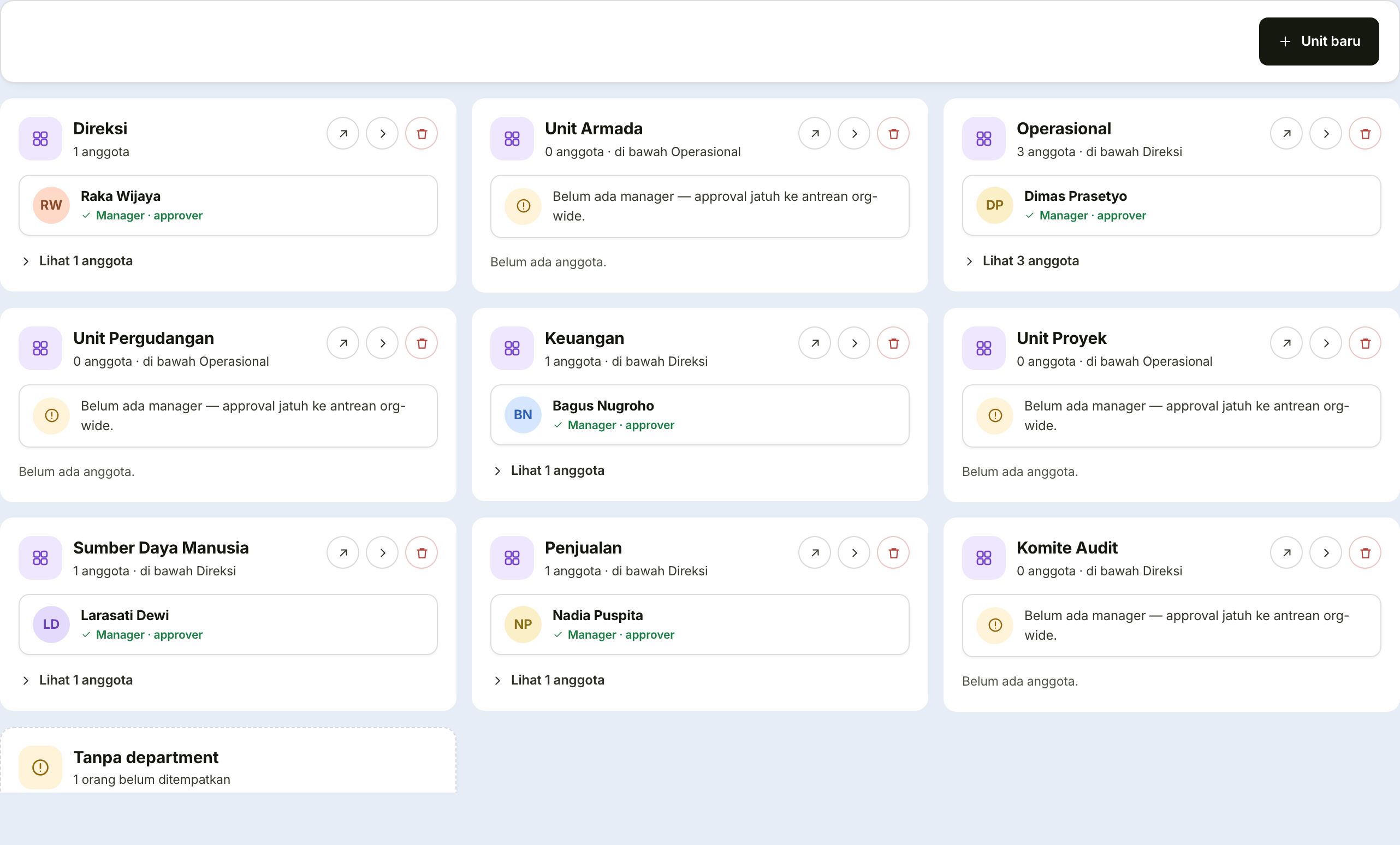
See Offices, shifts, rules, Leave policy, and Organisation structure for details.
Phase 3: Employee registration & digital onboarding
3.1 Three ways HR adds a new employee
Open People → Employees:
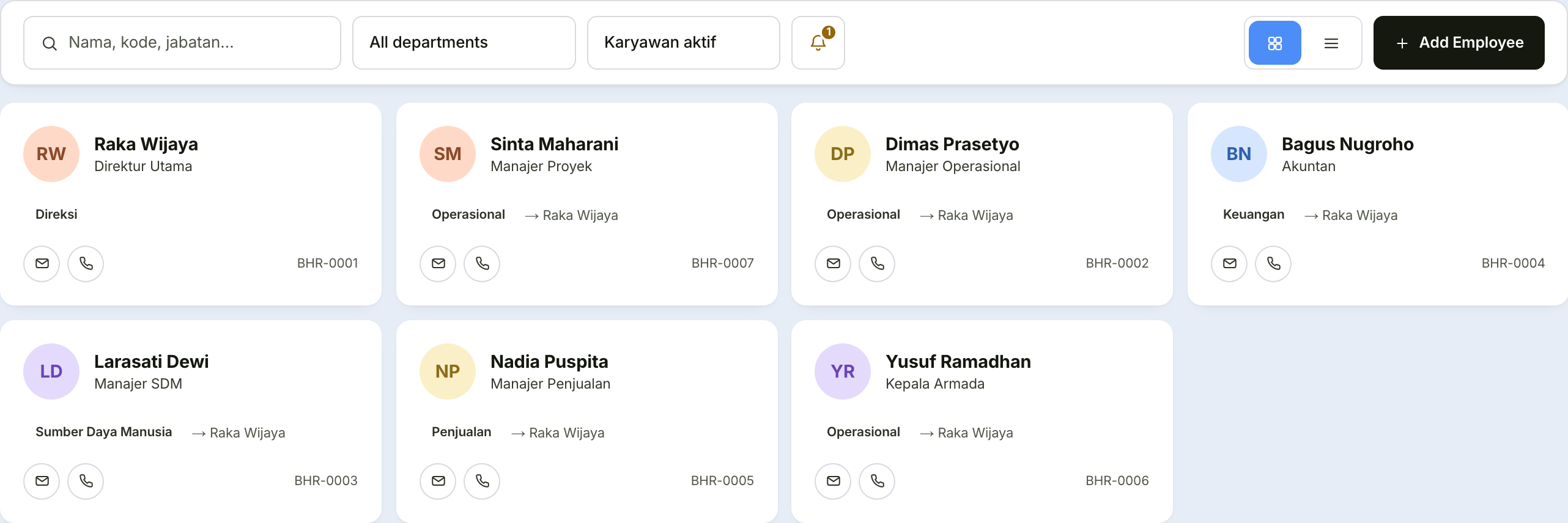
- 4-Step Add Employee Wizard (ideal for individual hires):
- Step 1 — Choose person: select anyone who accepted their Portal invite. Prefilled unit, office, job title, and outsourcing vendor appear automatically if entered on the invitation.
- Step 2 — Employment: set Employment type (Permanent / Fixed-term / Probation / Intern / Outsourced), employee code, Join date, Contract / probation end date, and optional First working day (if attendance starts later than contract date).
- Step 3 — Placement: assign Unit, Direct supervisor, Office ✅ (required), Work schedule / Shift ✅ (required), attendance policy, and leave balance template. Wizard field guide →
- Step 4 — Onboarding: choose an Onboarding checklist template, review, and click Save.
- From Recruitment: candidates from your careers page or pipeline who accept a job offer are invited straight into the Portal and linked from the offer when HR saves their employee profile.
- Bulk Excel Import (
Import tab): download the 3-sheet Excel template (up to 2,000 rows), upload for a read-only preview, and click Confirm. Any row whose member has not accepted their Portal invitation is held safely as Not a member yet — once they accept, re-upload the same file.
3.2 Digital onboarding in My Checklist & relative due dates
Employees open People → My Checklist (on the web or Kreatime mobile) to complete their assigned onboarding items:
| Item type | What happens | Automatic completion rule |
|---|---|---|
| Manual task | Handover desk, intro session | Marked complete by HR when done |
| Complete profile form | Employee fills emergency contacts, family, tax ID, social security, and bank account | Employee finishes once required fields are provided (even if waiting for HR verification) |
| Mandatory document | Employee uploads ID card, diploma, tax card, etc. | Completes automatically when HR verifies the file (reopens automatically if rejected) |
| Policy acknowledgement | Employee reads company rules / NDA and clicks agree | Completes automatically and records the accepted policy version |
| E-signature contract | HR uploads the PDF contract; employee signs digitally; authorised HR officer countersigns | Countersignature seals the PDF with a QR verification code, archives it to employee documents, and marks the task done |
| Induction course | Employee finishes required e-Learning lessons and quiz | Completes automatically upon passing the course |
Sample relative due-date setup inside a checklist template:
-3(3 days before join date): IT/GA prepares laptop, door access badge, and external system accounts.0(Day 1): new joiner fills basic profile details, attends team orientation, and signs their electronic employment contract.+7(Day 7): uploads mandatory ID/tax documents and acknowledges workplace policies.+30(Day 30): finishes mandatory induction e-Learning and completes first-month check-in.
3.3 Logging physical access & company assets
Open People → Access & Assets to record door badges, physical keys, company laptops/phones, and external system accounts assigned to the employee. Their effective end date derives automatically from the item expiry, active contract end date, or recorded last working day.
3.4 Ready for attendance & daily work
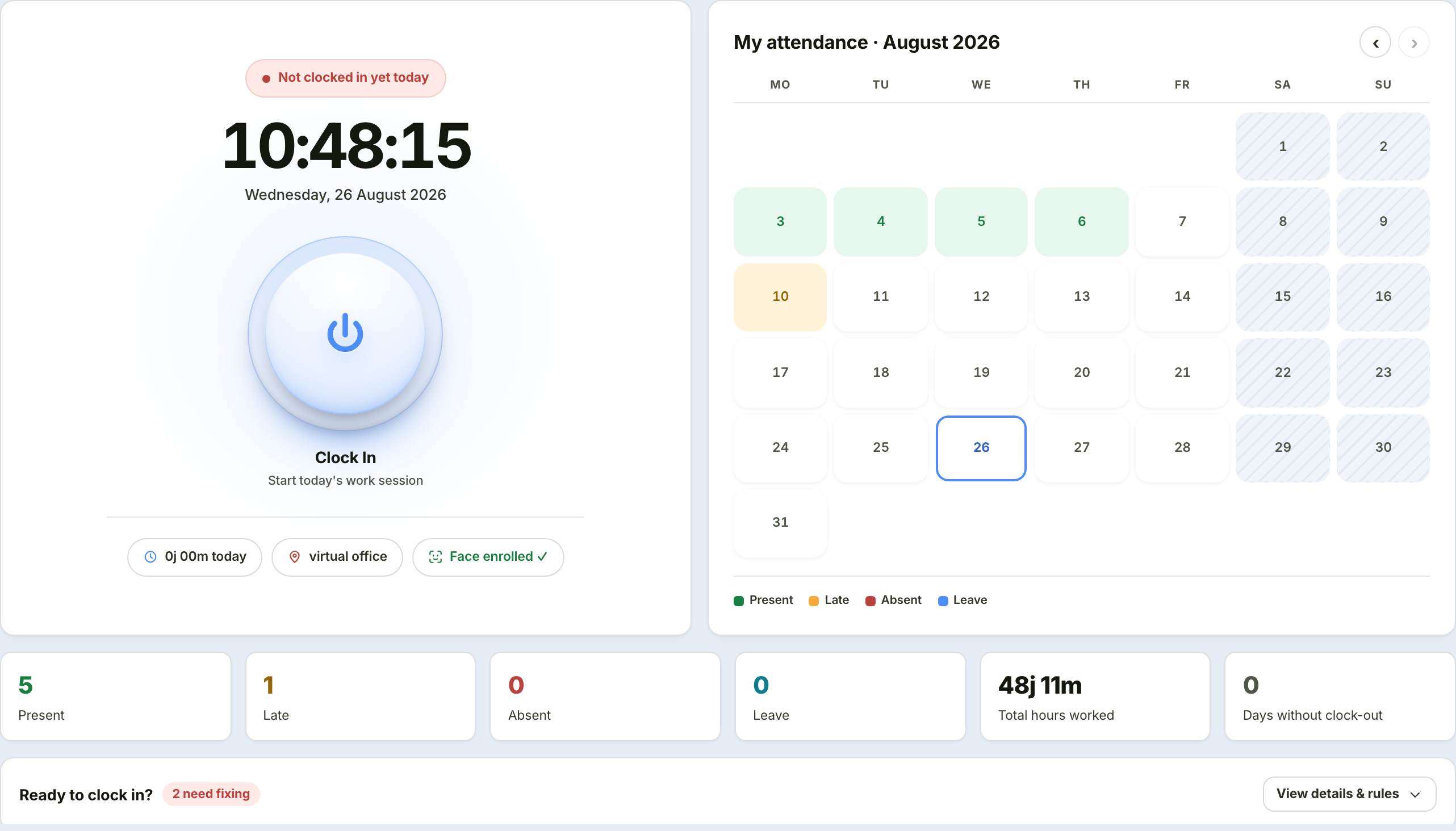
Once Office + Shift are saved and their start date arrives:
- The employee opens Attendance → My Attendance on the web or Kreatime on their phone.
- They check the Ready to clock in? card (active shift scheduled, GPS within the office geofence, and one-time Face enrolment completed if company rules require face checks).
- They tap Clock In and Clock Out daily. Daily attendance guide →
- Leave, overtime, WFH/WFA, corrections, and claims go through My Requests to the direct supervisor's Approval Center.
Phase 4: Mid-employment lifecycle changes
During active employment, updates stay structured and audited:
- Sensitive profile change approvals: edits to national ID, tax number, social security numbers, bank account, marital status, birth date, or dependants queue under People → Profile change requests for HR review so payroll and tax runs remain protected.
- Transfers, promotions & reporting line changes: update unit, position, or Direct supervisor under the employee's placement tab; new approval routes take effect immediately for future requests.
- Contract renewals & outsourcing conversion: log subsequent contracts before expiry reminders trigger, or convert an outsourced worker into an internal hire so payroll and KPI eligibility start cleanly next period.
- Data quality audits: scan for missing IDs, bank accounts, or expired contracts at any time using the Data Quality tab under People → Employees.
Phase 5: Full employee offboarding
When someone Resigns, reaches Contract End (Fixed-term / Probation / Intern / Outsourced), Retires, or is Terminated, follow these six steps:
1. Record departure on the employee profile (or let contract expiry trigger it). Open People → Employees → employee name → Employment status, pick the departure category, enter their Last working day, and record the reason:
- Scheduled exit: if the last working day is today or in the future, the employee remains Active through that final day — they can still clock in/out and finish handover tasks. The day after their last working day passes, the system automatically transitions their status to Departed.
- Outsourced workers: their vendor contract end date acts automatically as their scheduled departure, with expiry notices delivered specifically to HR managing outsourcing. If any departed person still clocks in afterwards, HR sees a Still clocking in alert.
2. Secure team approvals (especially when a manager is leaving). Reassign their subordinates' Direct supervisor under People → Organisation structure or set up temporary Approval delegation so pending team leave or overtime requests are never stranded.
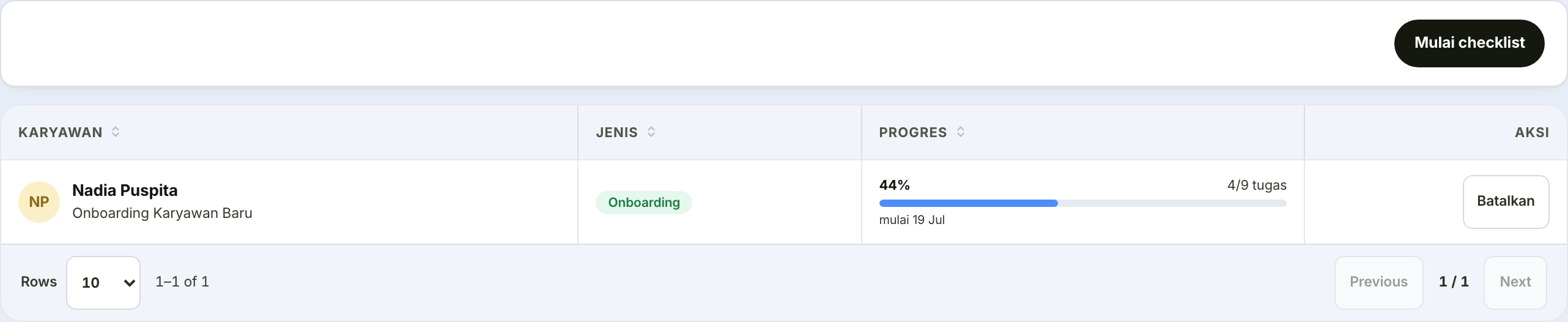
3. Launch an offboarding checklist (
People → Onboarding). Under the Active tab click Start checklist, set Type: Offboarding, select your clearance template (work handover, exit interview form, clearance sign-off), and pick the start date to schedule every deadline.4. Recover equipment & revoke accounts in
People → Access & Assets. All door badges, keys, laptops, and external accounts held by a departing worker move automatically to Ending soon, then Needs revocation the day after their last working day. Once IT/GA recovers the asset and disables external logins in the real world, click Mark revoked to close the compliance item.5. Process prorated final payroll, severance & final payslip. In Payroll, the employee's final month run automatically prorates base pay to their last working day (alongside outstanding cash advance deductions, overtime, or contract compensation). For terminations or retirements, use the Severance Calculator to compute statutory severance under PP 35/2021 before finalizing the run. Export or have the employee download their final payslip before Portal access closes.
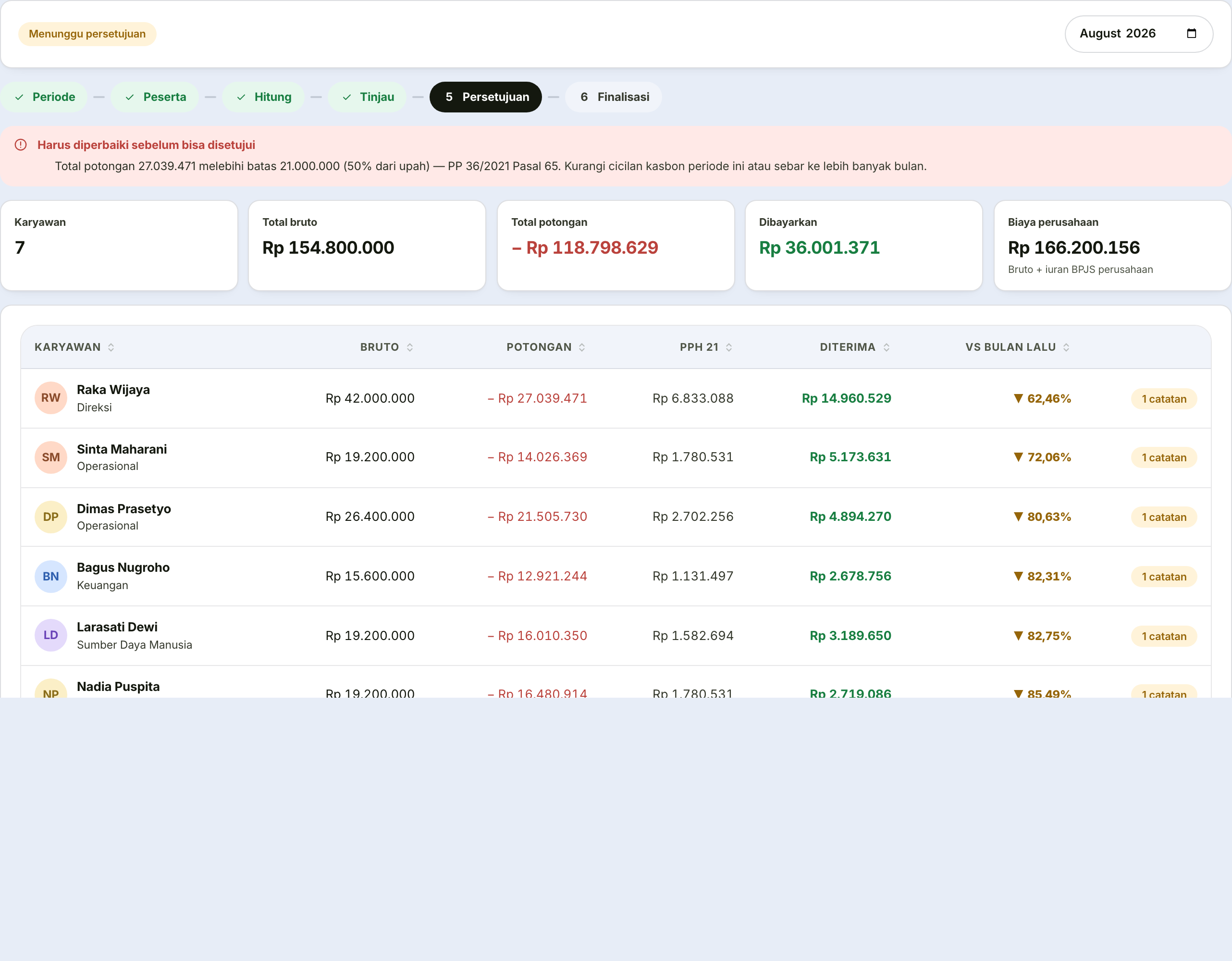
Payroll run workflow covering prorated final-month earnings and payslip generation through an employee's last working day. (Outsourced workers bypass internal payroll; days worked up to their final day appear in monthly vendor invoice reconciliation instead).
6. Issue a reference letter & deactivate Portal access.
- Draft the official reference / service certificate (Paklaring) using Outgoing Letters with company letterhead, approvals, and a QR-verifiable electronic signature, then send the sealed PDF to the leaver's personal email.
- When Deactivate access on exit is enabled under People → Compliance, the leaver's Portal company membership automatically turns off once departure takes effect (Organization Owners are safeguarded against automatic lock-out). Admins can also disable access earlier under Portal → Members. Historical attendance, payslips, reviews, and audit records stay intact.
Four common offboarding scenarios
| Scenario | Best way to handle it |
|---|---|
| Notice-period resignation | Enter a future Last working day (for example 30 days ahead) and start an offboarding checklist right away. The employee clocks in/out normally until their final day, then transitions automatically to Departed the morning after. |
| Immediate termination | Record Last working day as today or yesterday → collect assets and mark Revoked under Access & Assets → calculate severance under PP 35/2021 → immediately remove/deactivate member access under Portal → Members if needed. |
| Fixed-term / Probation / Intern expiry | When H-30/H-14 reminders fire: either add a renewed contract on their profile before expiry, or record contract-end departure and settle final compensation in Payroll. |
| Outsourced worker vendor contract ends | The vendor contract end date acts automatically as scheduled exit. Open People → Outsourcing to renew the placement if continuing, or reconcile the vendor invoice against attendance through their final day. |
Rehiring a former employee
If a former employee returns to the company (or an outsourced worker's vendor contract is renewed past expiry):
- Internal staff: re-register them via People → Employees → Add employee(or Excel import). Their Portal membership access automatically restores if it had been deactivated on exit, and a new employment episode records cleanly without overwriting prior service dates.
- Outsourced workers: open People → Outsourcing → Workers and click Extend contract with a new end date today or later.
Quick checklist by role
| Role | Key responsibilities from start to finish |
|---|---|
| Company Owner / Portal Admin | Create company/group → Complete address & logo → Invite team with the right Kreativstaff roles → Manage plan & seats |
| HR Team | Set up Offices, Shifts, Units, Leave, Docs & Templates → Register employees with Office & Shift → Verify docs & seal contracts → Record exit dates, run offboarding checklists, settle prorated pay/severance/reference letters → Enable auto-deactivation |
| Managers / Supervisors | Review leave/overtime/WFA requests in Approval Center → Oversee team onboarding & handovers (delegate approvals before leave/resign) |
| IT / GA | Log laptops, badges, keys & external accounts in Access & Assets on join → Collect & click Mark revoked on exit |
| Employees | Register account (immediately active without email verification) → Accept emailed invite link → Complete My Checklist, profile, docs & contract → Enrol face & Clock In/Out → Finish offboarding handover & return assets when leaving |
Common troubleshooting
| Issue | Cause | Solution |
|---|---|---|
| No verification email arrived after Create account | New accounts activate immediately without email confirmation | Proceed straight to creating a workspace or opening your emailed company invitation |
| Employee joined Portal, but name is missing in Add Employee wizard | They have not clicked Accept invitation, or accepted with a different email | Check Portal → Members → Pending invitations and confirm the invited email matches |
| Clock In button disabled despite being registered | Office or Shift missing, or First working day has not arrived yet | Fill Office & Shift under employee placement or Roster & corrections |
| Edited ID / tax / bank details did not update payroll right away | Sensitive profile fields wait for HR approval before taking effect | HR opens People → Profile change requests and approves the edit |
| Resignation date entered for this month, yet status stays Active | Scheduled exit keeps employees active until after their final working day | Wait until the day after their last working day; status switches automatically |
| Some team members cannot accept bulk invitations | Available company seats ran out (seats are checked twice) | Add seats under Portal → Billing, then resend remaining invitations |
| Pending team requests stuck after manager resigns | Subordinates still report to the departing manager without delegation | Update Direct supervisor under People → Organisation structure |
| Former employee rejoining the company | Prior profile and history remain safely archived | Re-add via Add employee; deactivated Portal access restores cleanly with separated history |